Managing your locomotives
Locomotives vs. locomotive models
Every locomotive you own points to a model — the prototype it's based on, like an SD40-2 or a GP38-2. The model holds specs shared across every copy (type, horsepower); the locomotive itself holds what's specific to yours — road number, decoder, purchase price, notes. Own five SD40-2s and you still only describe the model once.
You don't need to set up models ahead of time. Add them as you go, right from the locomotive form, or manage the full catalog under Settings → Locomotive Models — including merging two models together if you end up with duplicates.
Add a locomotive
- Go to Locomotives and select New Locomotive.
- Choose the Railroad and, optionally, a Road Number.
- Pick a Model. If it's not in the list yet, select the + next to the picker to add one on the spot — name, type (Diesel, Steam, Electric, or Other), and horsepower.
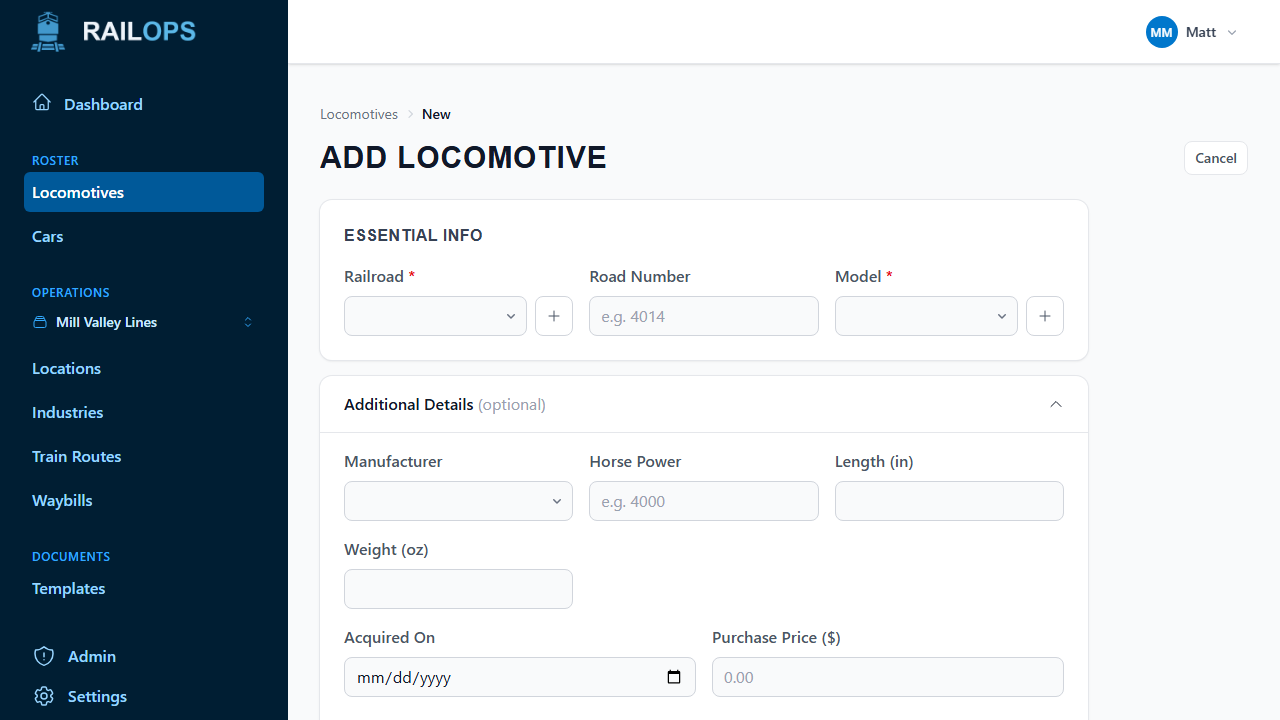
Typing a road number that matches something in Rail Ops' shared catalog suggests a model and specs automatically — you'll see a "Catalog says…" note and a confidence badge next to anything it filled in for you. Suggestions never overwrite a field you've already typed into yourself.
Open Additional Details for manufacturer, horsepower, length, weight, acquisition date, purchase price, and notes — none of it required to save.
The DCC decoder
A locomotive's decoder isn't part of the initial form — add it from the locomotive's own page once it exists.
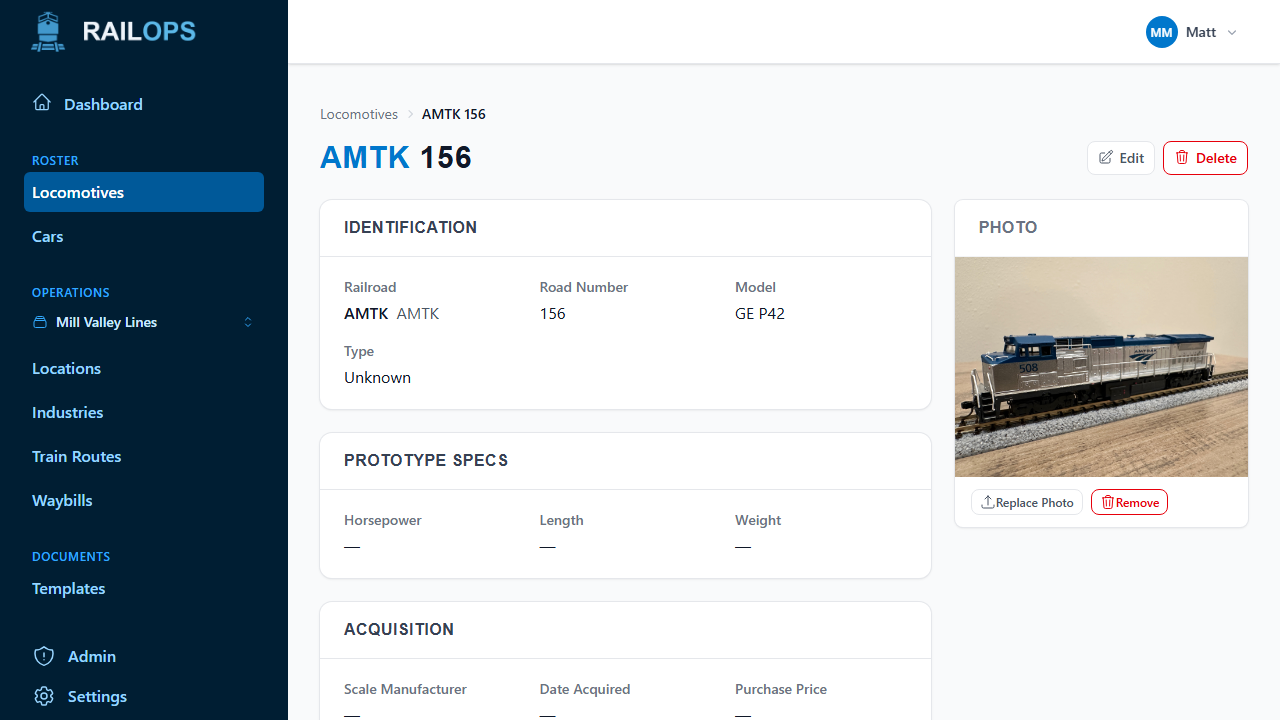
- Open the locomotive and select Edit (or Assign Decoder, if none is set yet).
- Open Decoder Details and turn on Decoder Installed.
- Fill in the address, manufacturer, model number, and any install notes.
Editing and deleting
Open a locomotive and select Edit to change its model, specs, acquisition details, or decoder. Select Delete to remove it — this can't be undone.
Finding locomotives
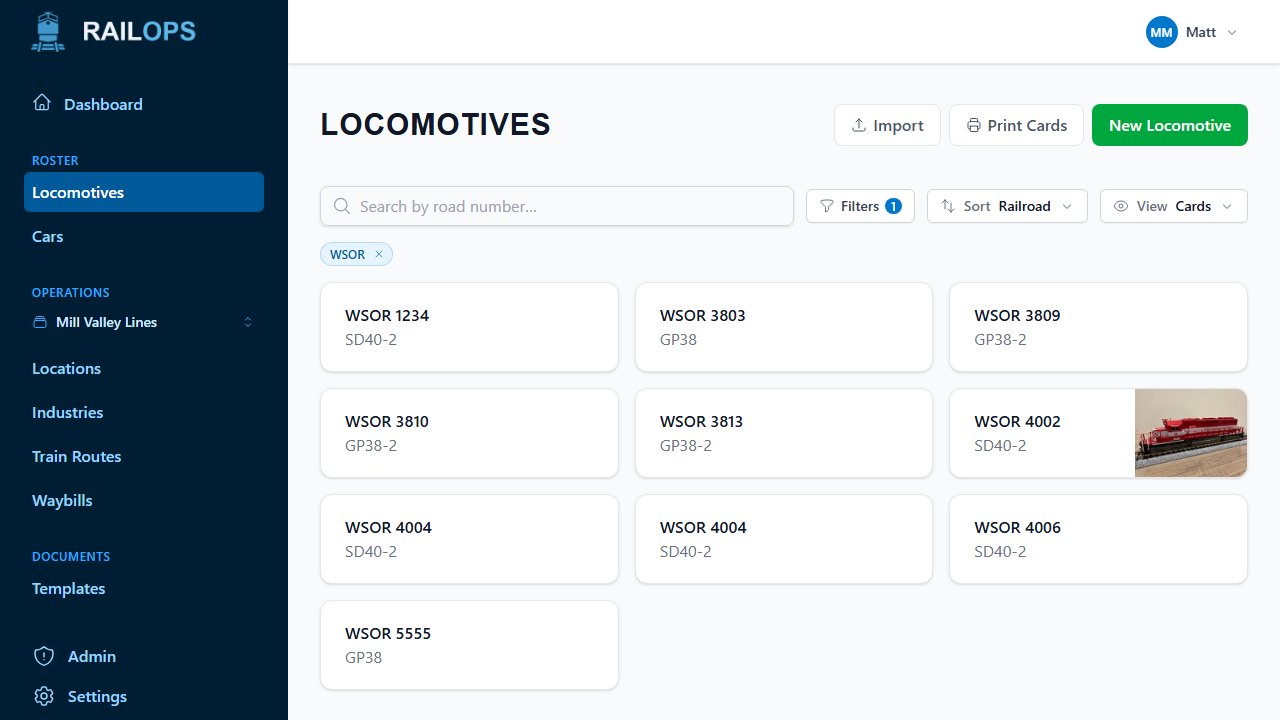
The Locomotives page gives you:
- Search by road number.
- Filters for railroad, model, and manufacturer.
- Sort by railroad, road number, model, or recently updated.
- A card or table view, whichever suits scanning your fleet better.
Printing
Select Print Cards from the Locomotives page to generate loco cards for an operating session. See Document templates for setting one up first.
Next
Bringing in a lot of locomotives at once instead? See Importing locomotives.