Managing your cars
Add a car
- Go to Cars and select New Car.
- Choose the Railroad and, optionally, a Road Number.
- Pick a Car Type. If it's not in the list yet, select the + next to the picker to add one on the spot — car types just need a name (e.g. Boxcar, Tank Car, Flatcar).
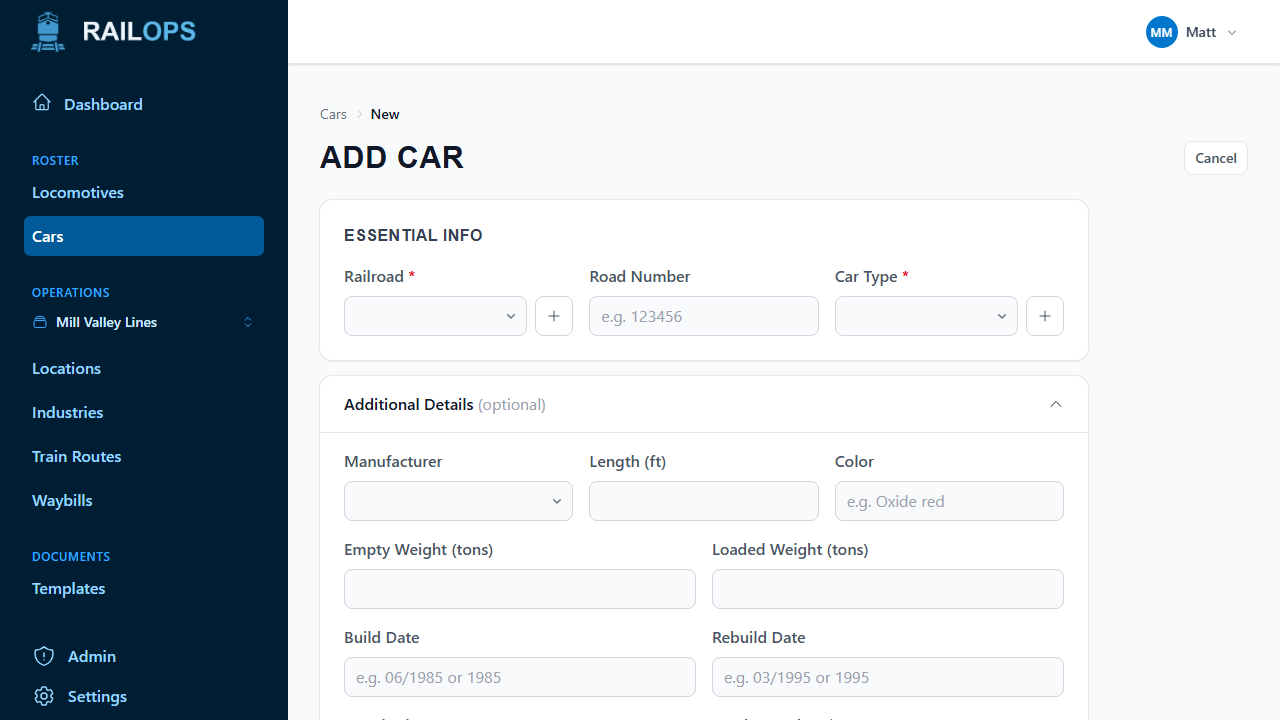
Typing a road number that matches something in Rail Ops' shared catalog suggests a car type and specs automatically — length, weight, color, build and rebuild dates — each with a confidence badge next to anything it filled in for you. Suggestions never overwrite a field you've already typed into yourself.
Open Additional Details for manufacturer, weight, color, build/rebuild dates, acquisition date, purchase price, and notes — none of it required to save.
Editing and deleting
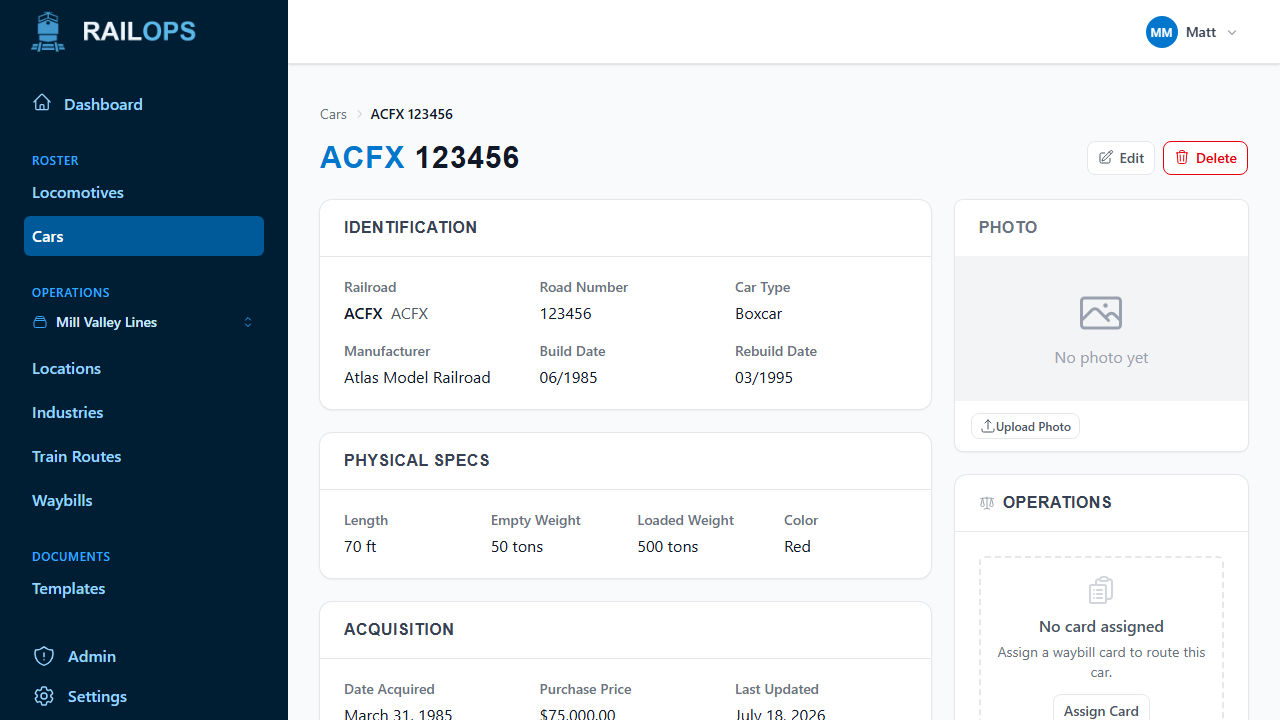
Open a car and select Edit to change any of its details. Select Delete to remove it — this can't be undone. A car's page also shows its current waybill assignment under Operations, if you're running waybills.
Editing many cars at once
For bigger changes, select Bulk Edit from the Cars page instead of opening cars one at a time.
- Filter down to the cars you want to change. Every matching car loads into the grid at once.
- Edit cells directly, or tick several rows and use the bar that appears to set one field — like Car Type — across all of them in one move. Use Columns to bring more fields into view.
- Select Save Changes when you're done. Only the cells you actually touched are sent — clearing a cell empties that field, leaving one alone keeps its current value. If anything is rejected, nothing saves, and your edits stay in the grid so you can fix and retry.
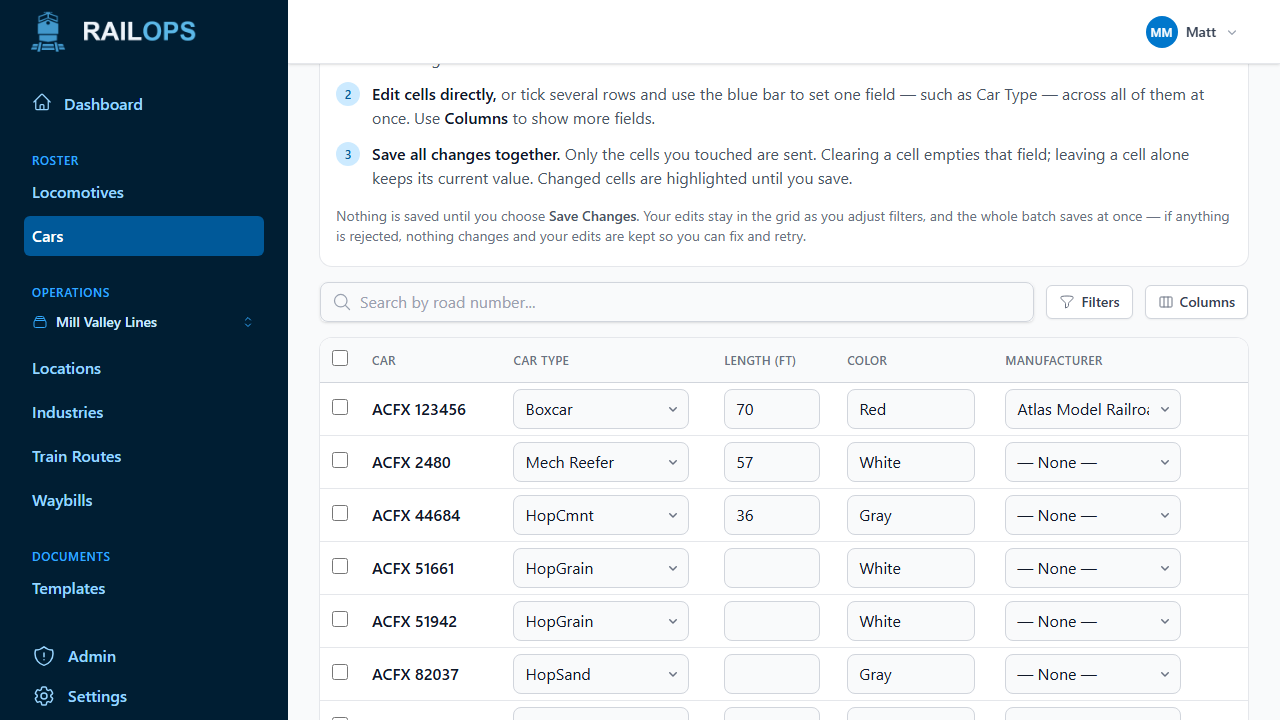
Bulk edit tops out at 1,000 cars per save.
Finding cars
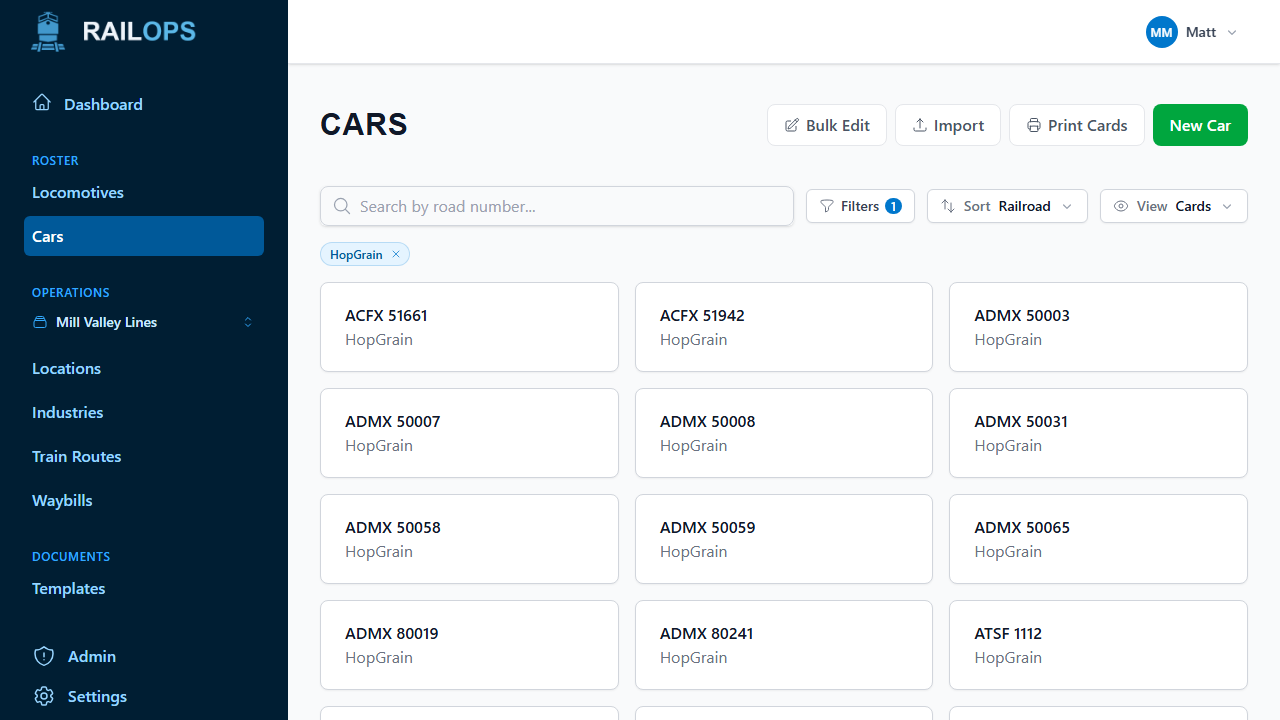
The Cars page gives you:
- Search by road number.
- Filters for railroad, car type, and manufacturer.
- Sort by railroad, road number, car type, or recently updated.
- A card or table view, whichever suits scanning your roster better.
Printing
Select Print Cards from the Cars page to generate car cards for an operating session. See Document templates for setting one up first.
Next
Bringing in a lot of cars at once instead? See Importing cars.