Importing cars
If you already track your rolling stock in a spreadsheet, importing is faster than adding cars one at a time.
Prepare your CSV
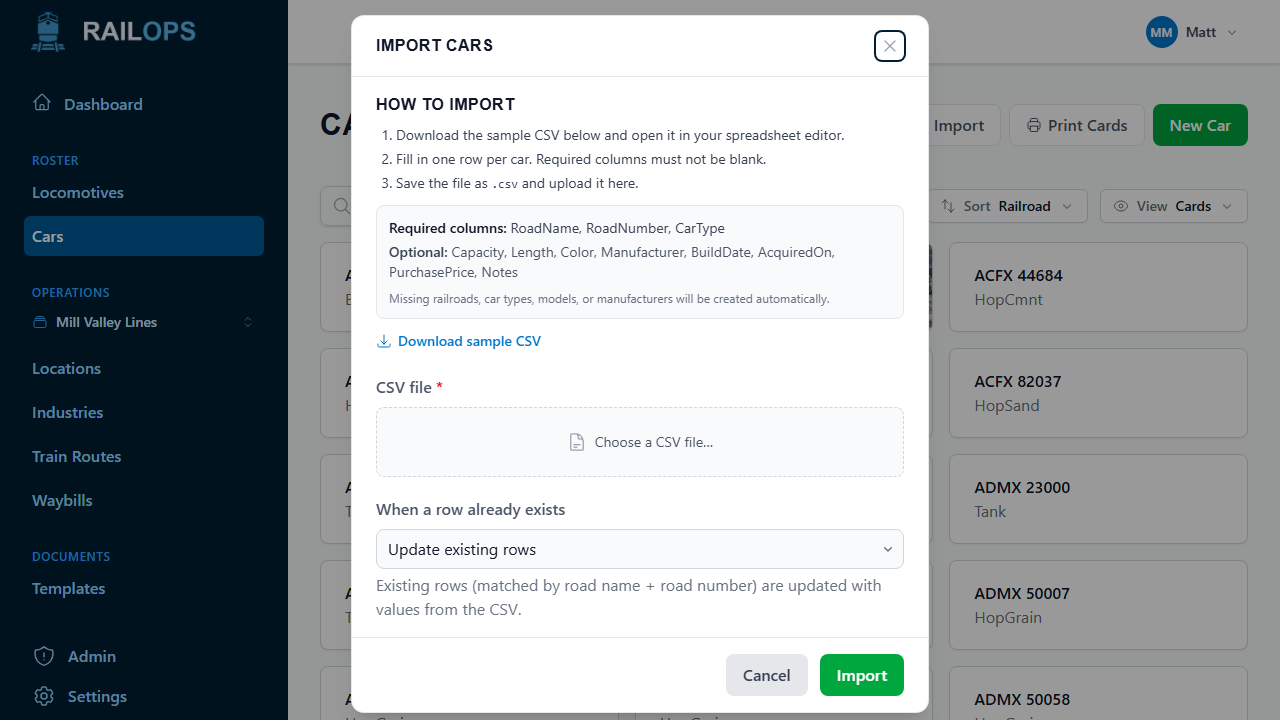
- Go to Cars, open the ⋮ menu next to New Car, and select Import.
- Select Download sample CSV to get a template with the right column headers.
- Fill in one row per car, then save it as
.csv.
Required columns: RoadName, RoadNumber, CarType
Optional columns: Capacity, Length, EmptyWeight, LoadedWeight,
Color, Manufacturer, BuildDate, RebuildDate, AcquiredOn,
PurchasePrice, Notes
RoadName is the railroad's reporting mark (BNSF, UP, CSXT), up to 10
characters. Write dates as YYYY-MM-DD. Column order doesn't matter, and
common alternate headers work too: Road, Number, Type, Built, and
Comments all map to the right field.
Any railroad or car type your CSV references that doesn't already exist in Rail Ops gets created automatically, so you don't need to set those up first. New railroads use the reporting mark as their name; rename them later under Settings → Railroads if you like.
Choose what happens to existing rows
Rail Ops matches CSV rows to existing cars by road name + road number. Under When a row already exists, pick how it should handle a match:
- Skip existing rows: leaves them untouched. Only new cars are added.
- Update existing rows: this is the default. The existing car is updated with the values from the CSV.
- Replace existing rows: the existing car is deleted and recreated from the CSV.
With either Update or Replace, a blank cell clears that field on the existing car. If you only want to change a few columns, start from an export of your cars rather than a fresh sample file. That way every other column is already filled in.
Select Import once your file is ready.
If some rows don't import
Rows are checked one at a time. A row that's missing a required column or has a bad value (like a date Rail Ops can't read) gets skipped, and the rest of the file still imports. If a car you expected is missing afterward, check that row, fix it, and import the file again with Update existing rows.
Next
For adding cars by hand, editing many at once, or day-to-day upkeep, see Managing your cars. To get your cars back out as a spreadsheet (or into JMRI), see Exporting your roster.